
Discord has a built-in feature that lets you connect a domain name to your profile and display it publicly. If you own domain names, this is a nice way to show one off on your Discord profile — and the verification step proves you actually control it.
There are two ways to verify: via a DNS TXT record, or via a file on your website. Both work; which one to use depends on your setup. If the domain is actively hosted, HTTP is simpler. If it's parked or you don't have web hosting, DNS is the way to go.
Here's how to do it:
Open Connections in User Settings. Open Discord and go to User Settings (click the gear icon near your username at the bottom left). In the left sidebar, click Connections.
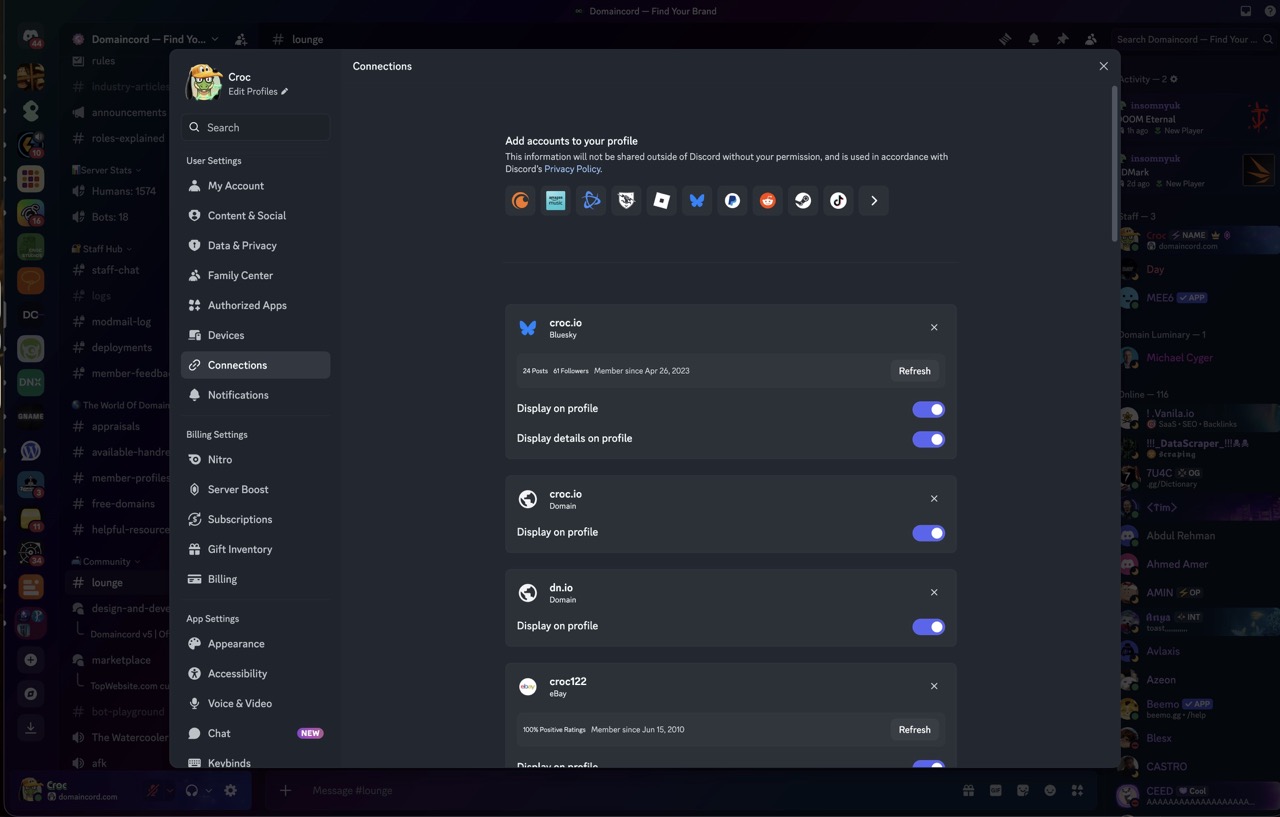
You'll see a row of icons for services you can connect. Domain isn't shown by default — you need to expand the list.
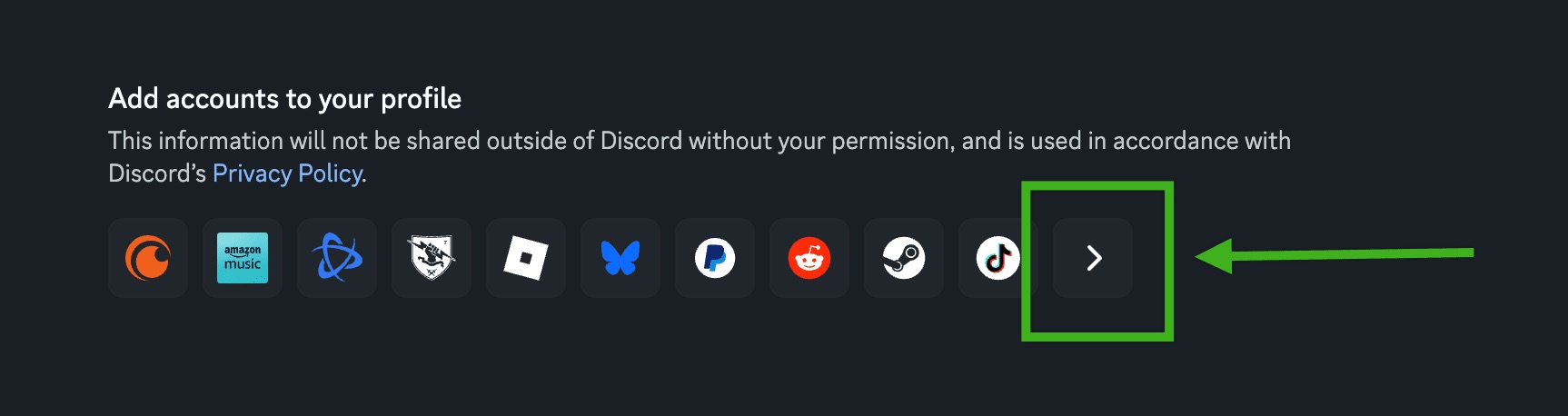
View all connection options. Click the ">" arrow button at the end of the connection icons row to see all available connection types.
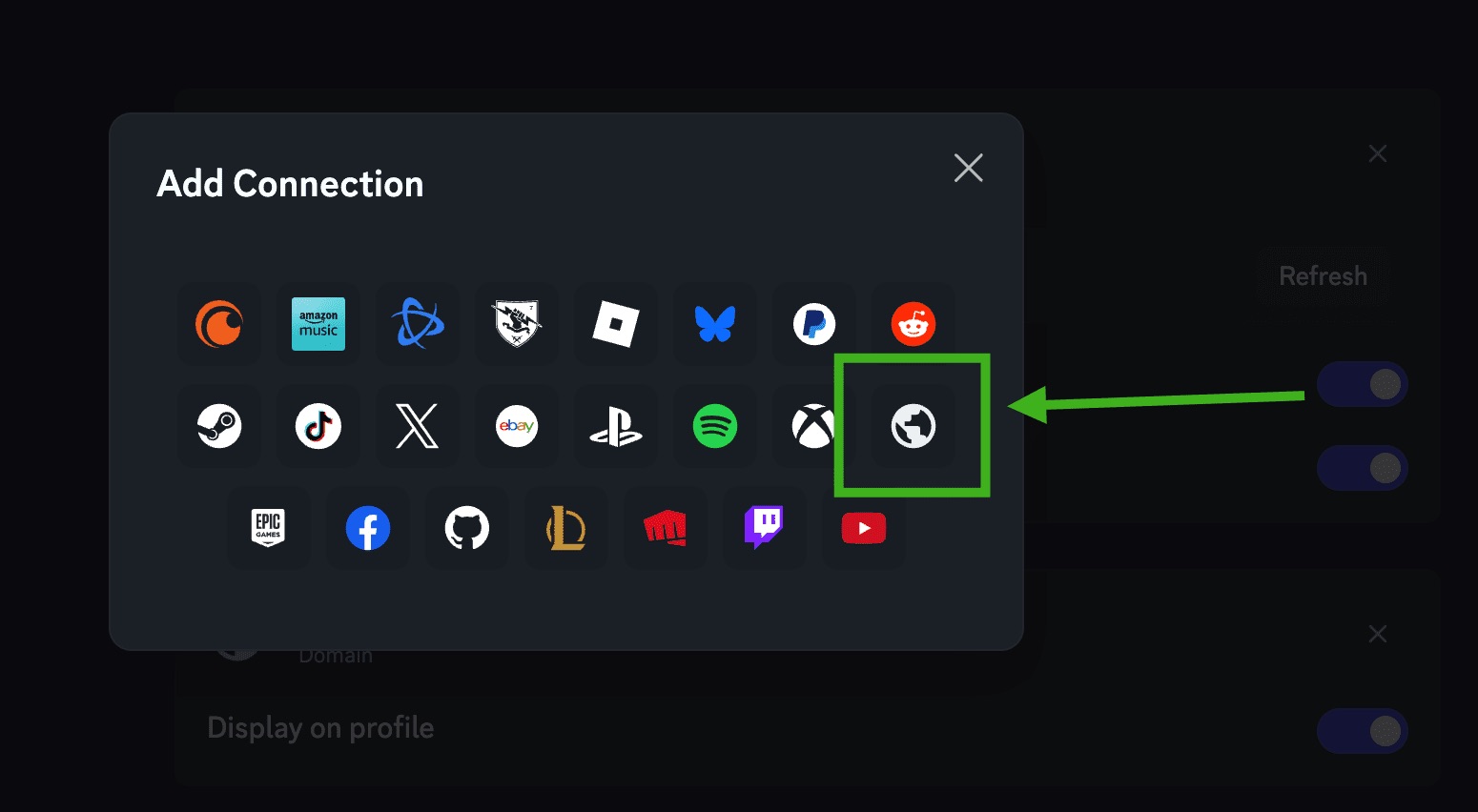
Select Domain. In the Add Connection modal, find the domain/globe icon in the second row and click it.
Enter your domain and choose a verification method. A dialog will appear asking you to enter the domain you wish to connect/link.

At this point, you have two options. The default (current view) is to verify using DNS, but you can click the grey button next to the blurple Verify button to verify using a file-based site upload method instead (Verify via HTTPS).
Option A: Verify via DNS. Discord will show you the details for a TXT record to add at your domain registrar or DNS provider:
- Name:
_discord.yourdomain.com - Type: TXT
- Content: the
dh=...token Discord generates for you
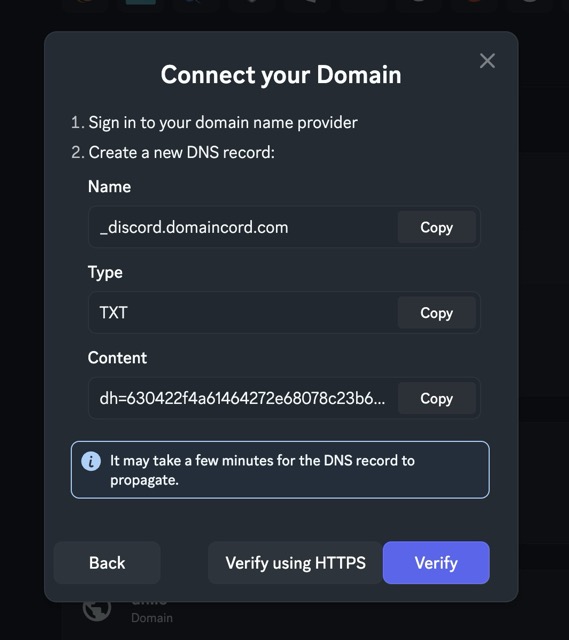
Log in to wherever you manage your DNS (your registrar, Cloudflare, etc.), create the TXT record with those values, then click Verify. DNS changes can take a few minutes to propagate, so if it fails immediately, wait a couple of minutes and try again.
Option B: Verify via HTTPS. If your domain is hosted and you can create files on it, this method is often faster. Discord asks you to create a file at a specific path on your site —
/.well-known/discord— with adh=...token as its contents.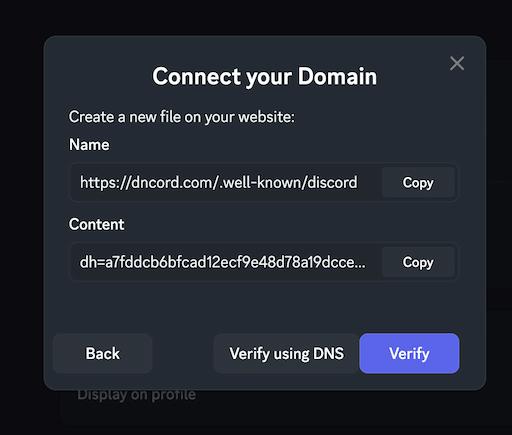
Create the file at that exact path, make sure it's publicly accessible, then click Verify. Discord will fetch the file and confirm the token matches.
- Name:
Toggle "Display on profile". Once verified, the domain will appear in your Connections list. Enable Display on profile to make it visible on your public Discord profile.
That's it — your domain is now linked to your Discord account and shows up on your profile as a verified connection.
If you're looking to link a domain to your Discord server instead — so people can join at discord.yourcommunity.com — see How to link a domain name to your Discord server.